
شاشات حقيقية من التطبيق
لقطات مأخوذة من التطبيق نفسه ببيانات وضع الضيف، على الهاتف والتابلت والكمبيوتر.
الهاتف
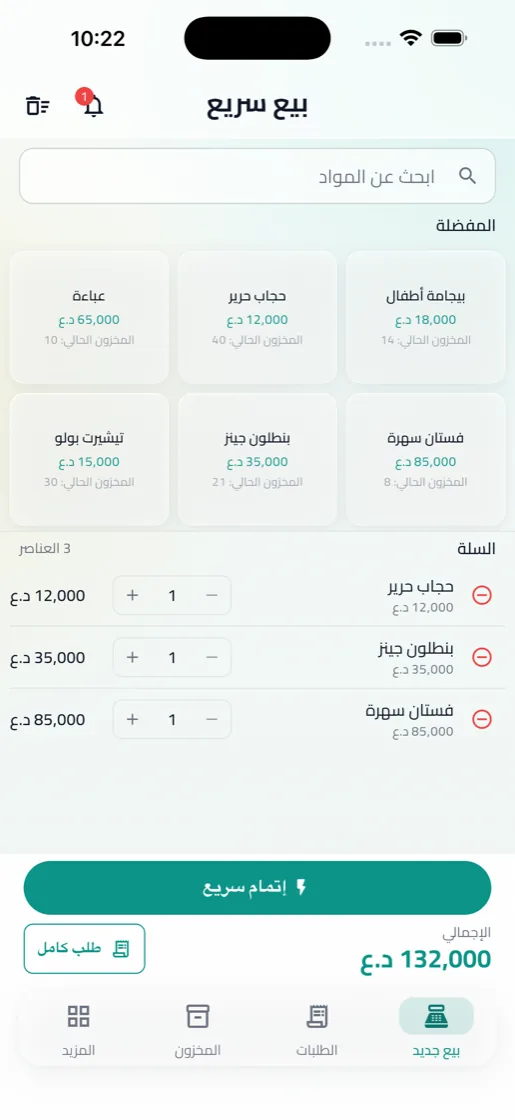
البيع السريع
ابحث، اختر من المفضلة، والسلة تحسب الإجمالي.
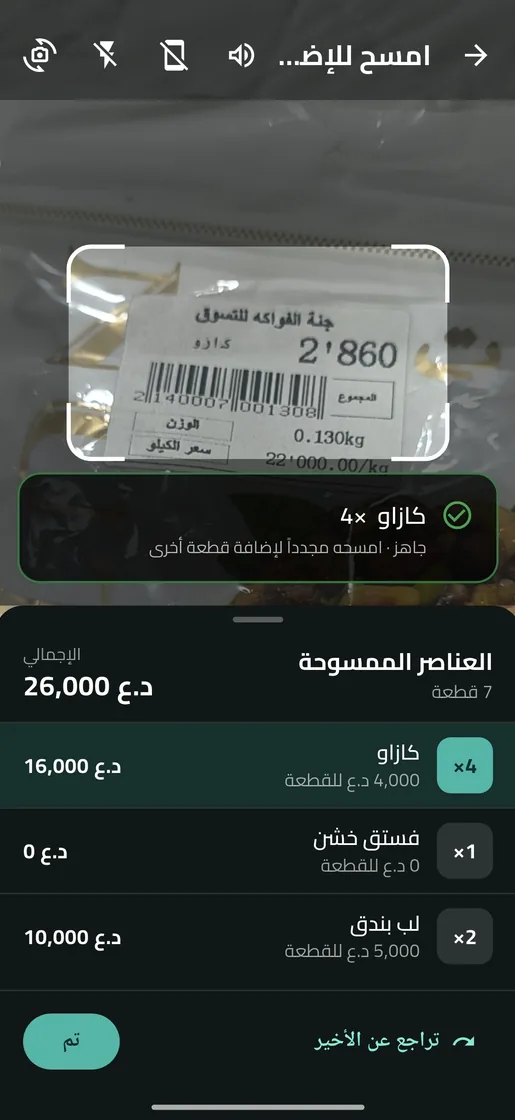
المسح بالكاميرا
كل مسحة تضيف المادة، وقائمة بما مسحته.
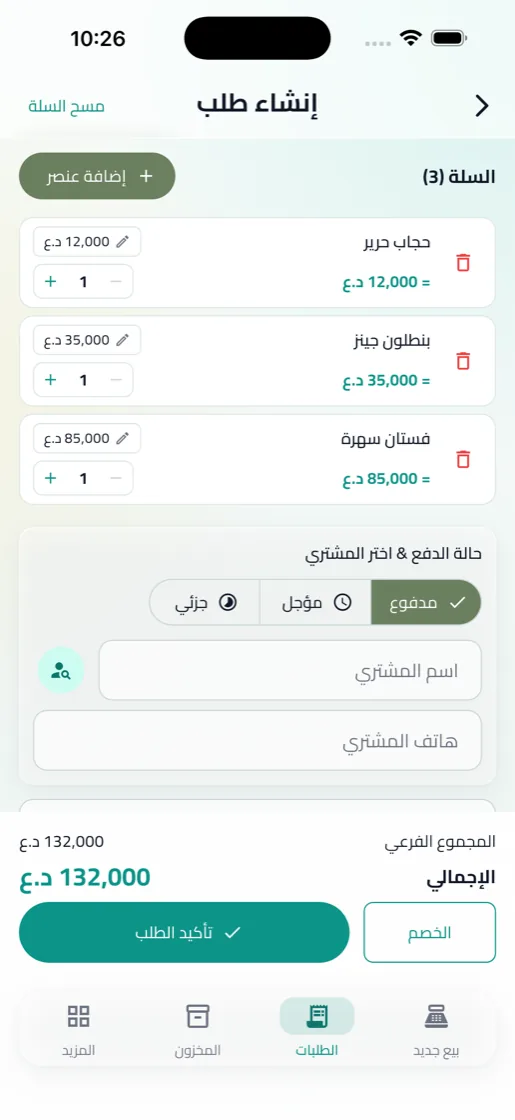
إنشاء طلب
المشتري، المواد، ونقد أو آجل أو دفعة جزئية.
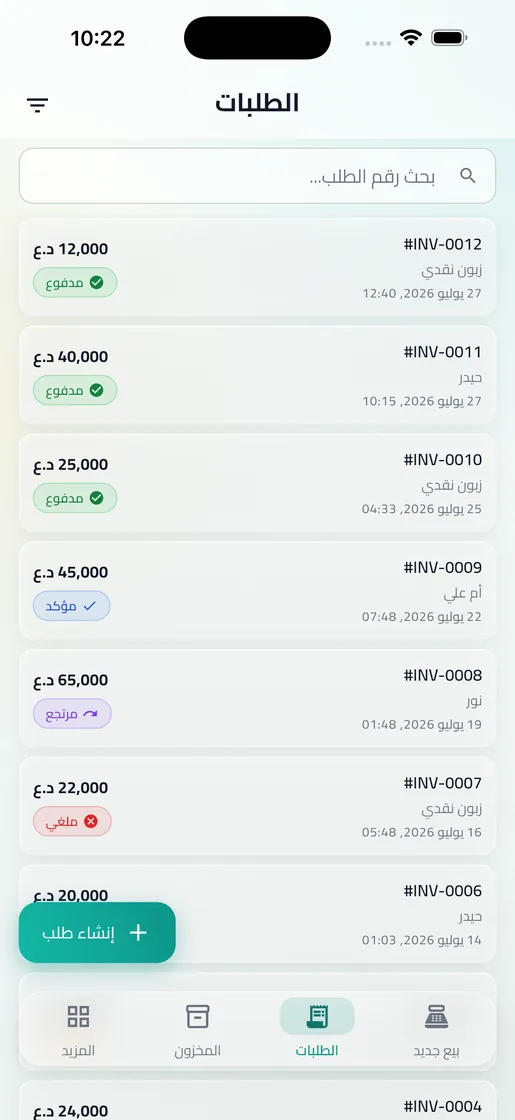
الطلبات
كل طلب بحالته: مدفوع، مؤكد، مرتجع أو ملغي.
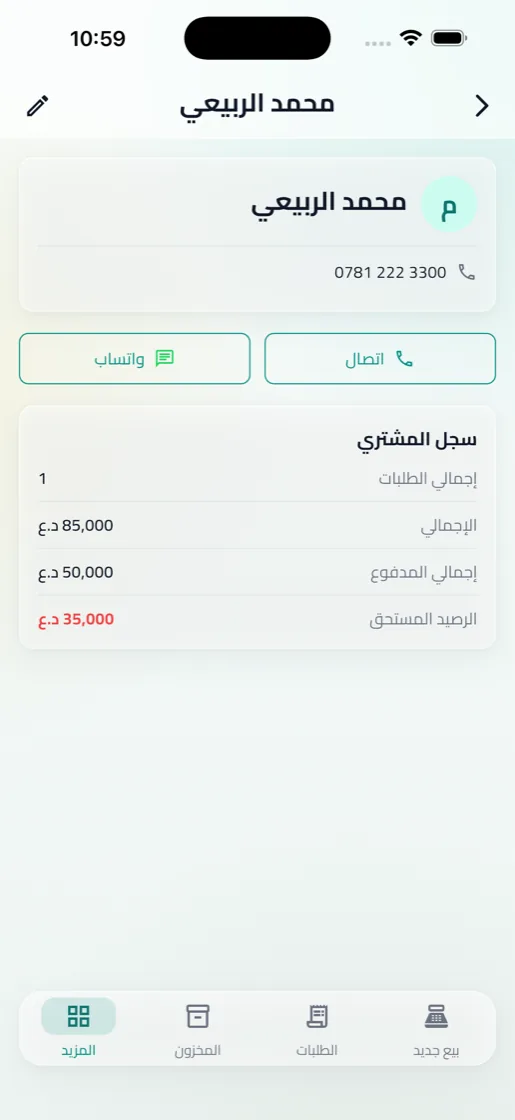
ديون المشترين
الرصيد المستحق وسجل الدفعات لكل مشترٍ.
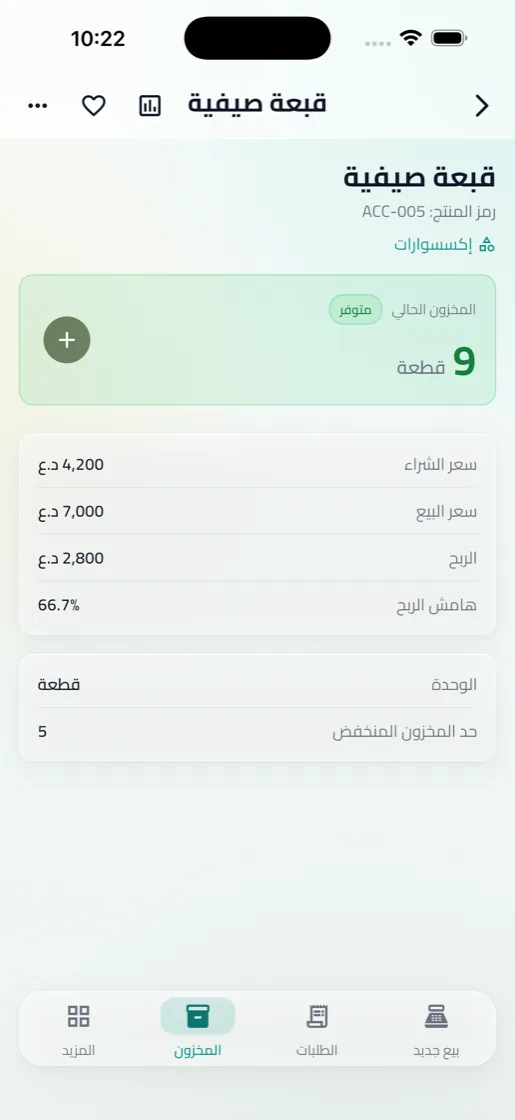
تفاصيل المادة
سعر الشراء والبيع، هامش الربح، والكمية المتوفرة.
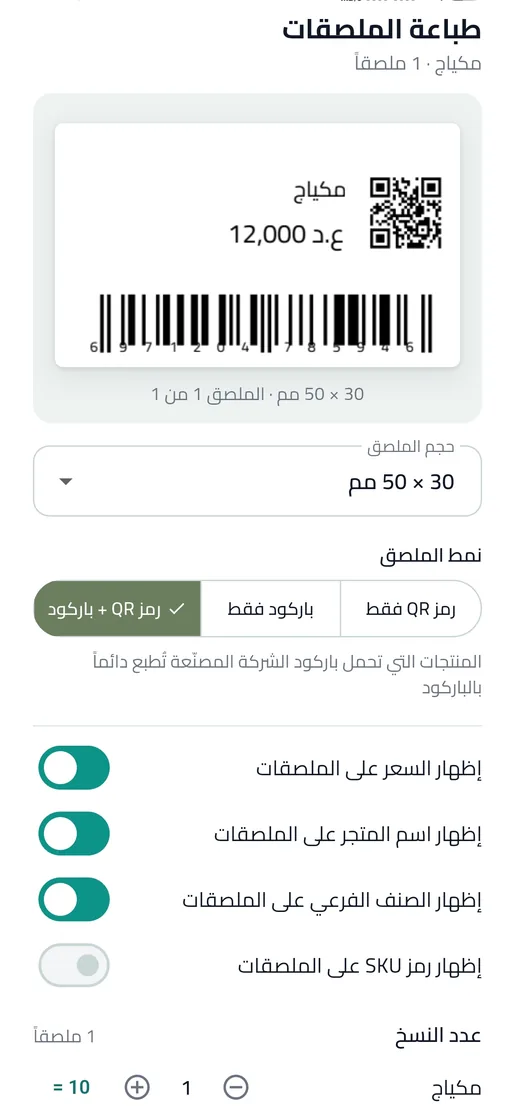
ملصق المادة
QR أو باركود أو كلاهما، جاهز للطباعة.
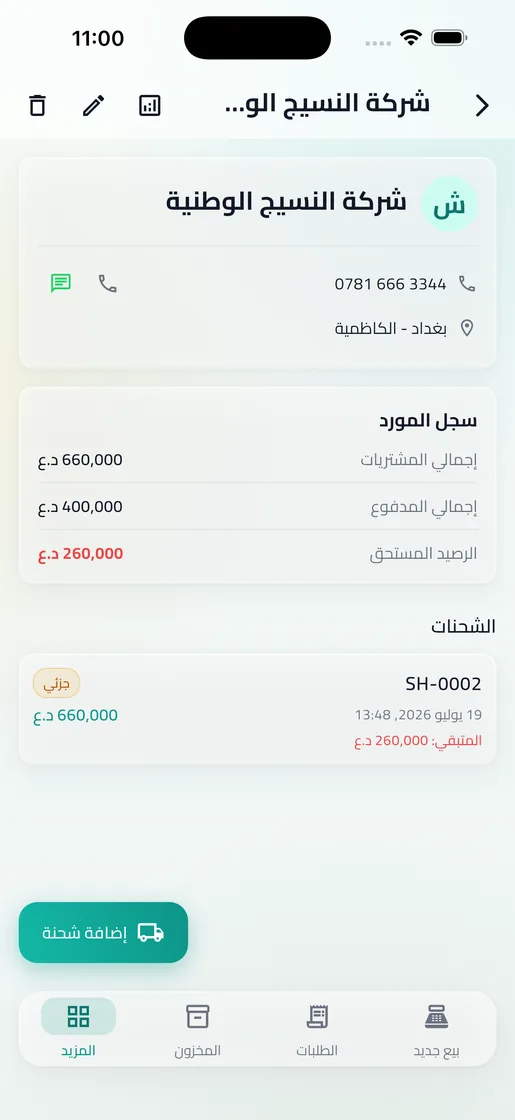
المورد وشحناته
إجمالي المشتريات والمدفوع والرصيد المستحق.
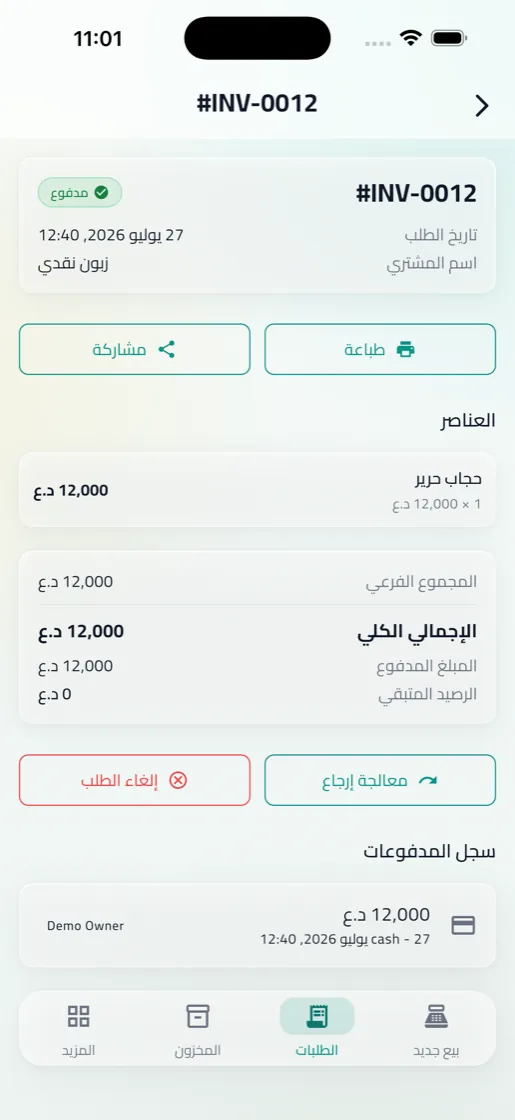
الفاتورة
باسم محلك وشعاره، جاهزة للطباعة أو المشاركة.
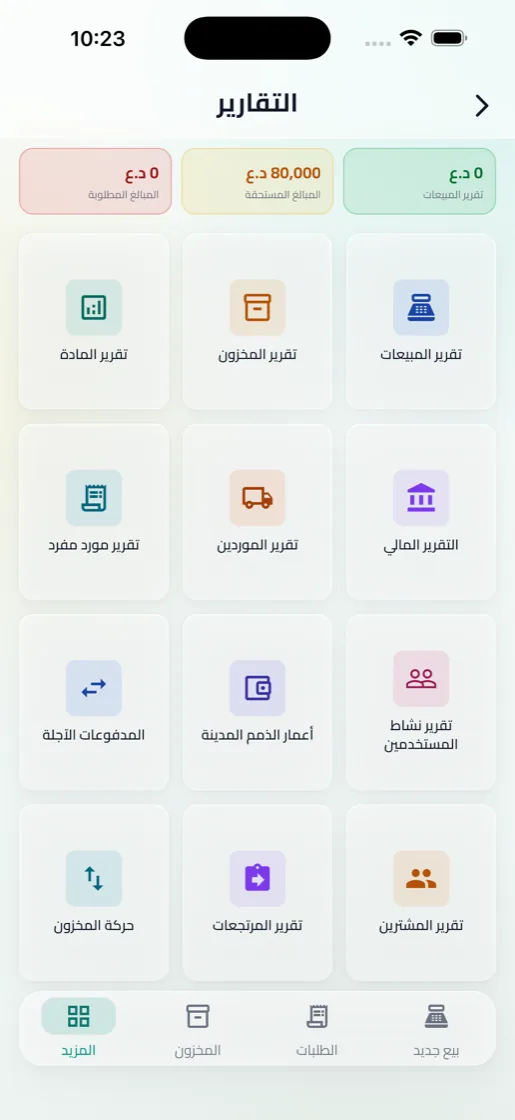
التقارير
المبيعات والأرباح والمخزون والديون لأي فترة.
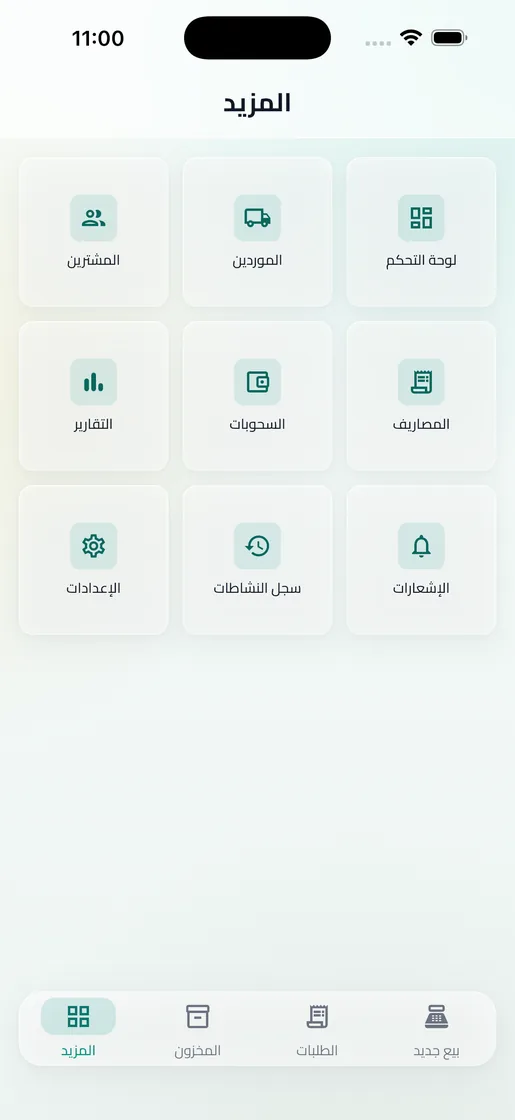
المزيد
المشترين والموردين والمصاريف والسجل في مكان واحد.
التابلت
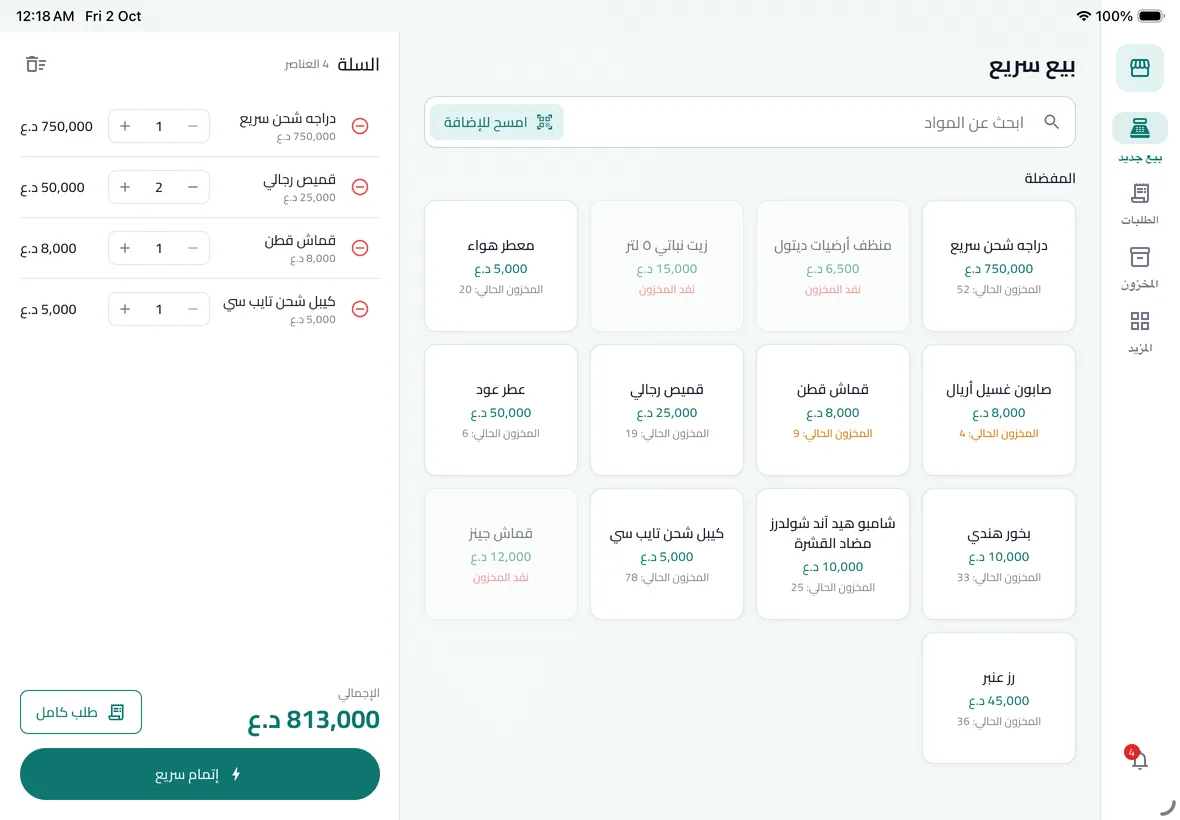
البيع السريع
شبكة المواد على جهة، والسلة وزر الدفع ثابتان على الجهة الأخرى.
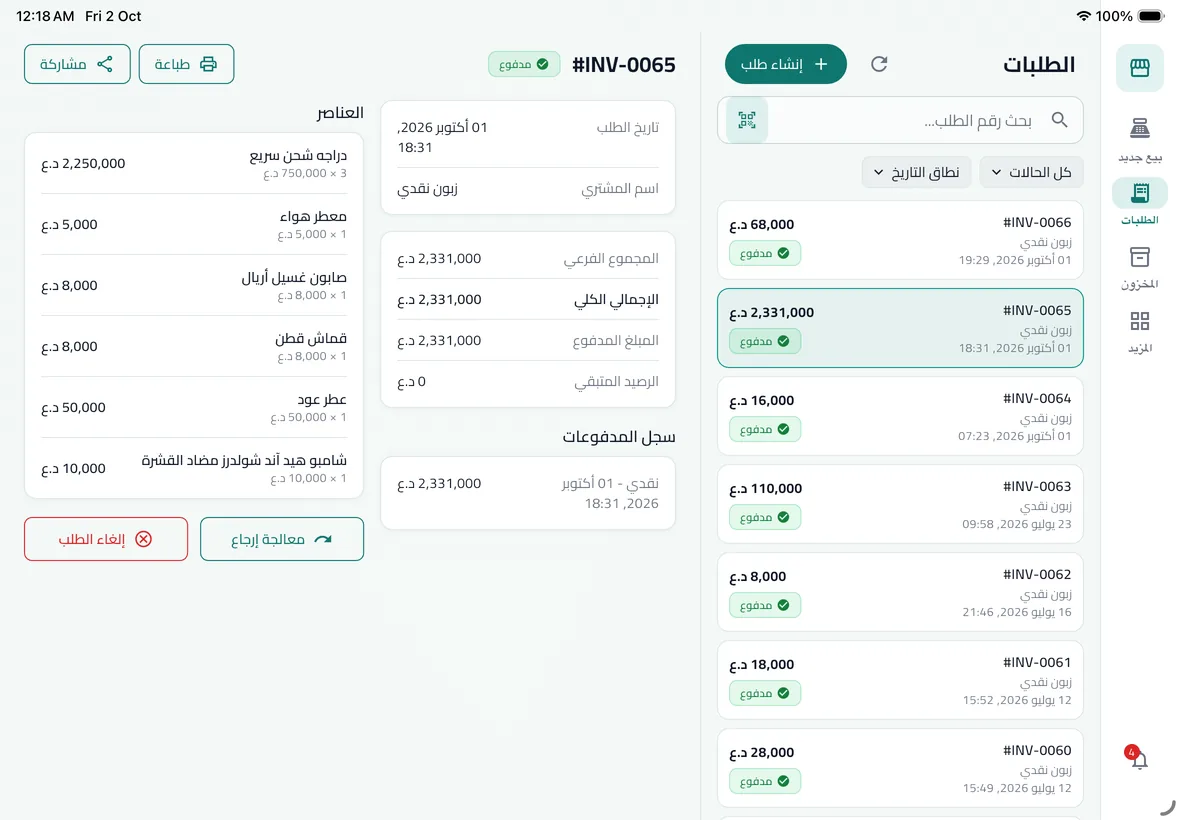
الطلبات
القائمة على جهة، وتفاصيل الطلب المختار بجانبها.
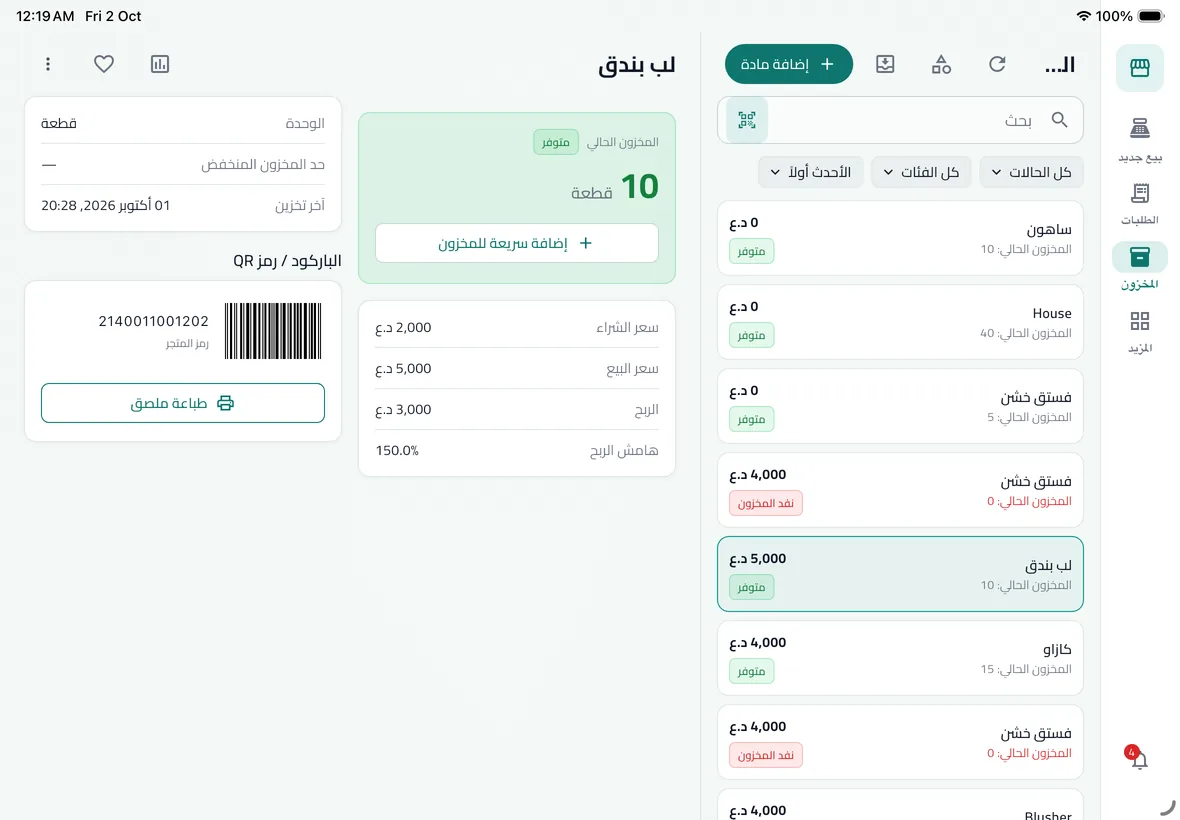
المخزون
اختر مادة لترى كميتها وأسعارها ورمزها دون مغادرة القائمة.
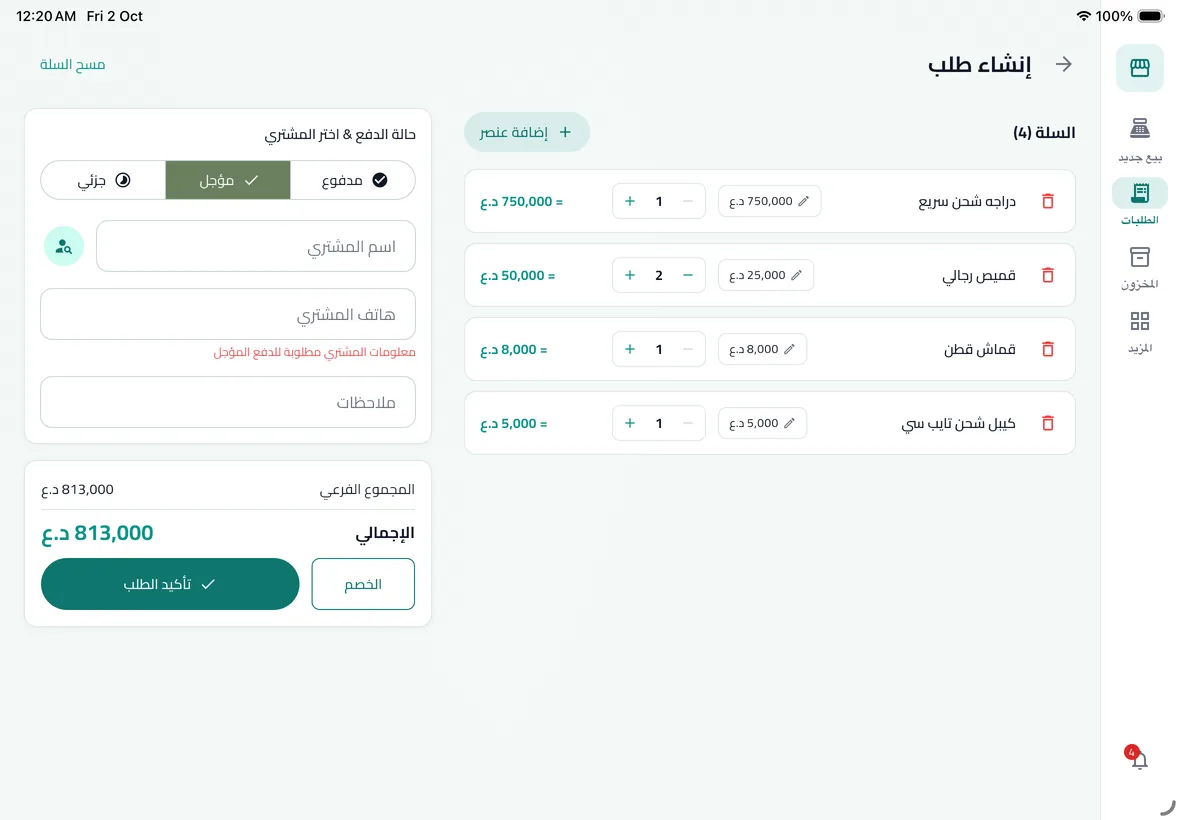
إنشاء طلب
المواد مع زر المسح، ولوحة الدفع بجانبها.
الكمبيوتر
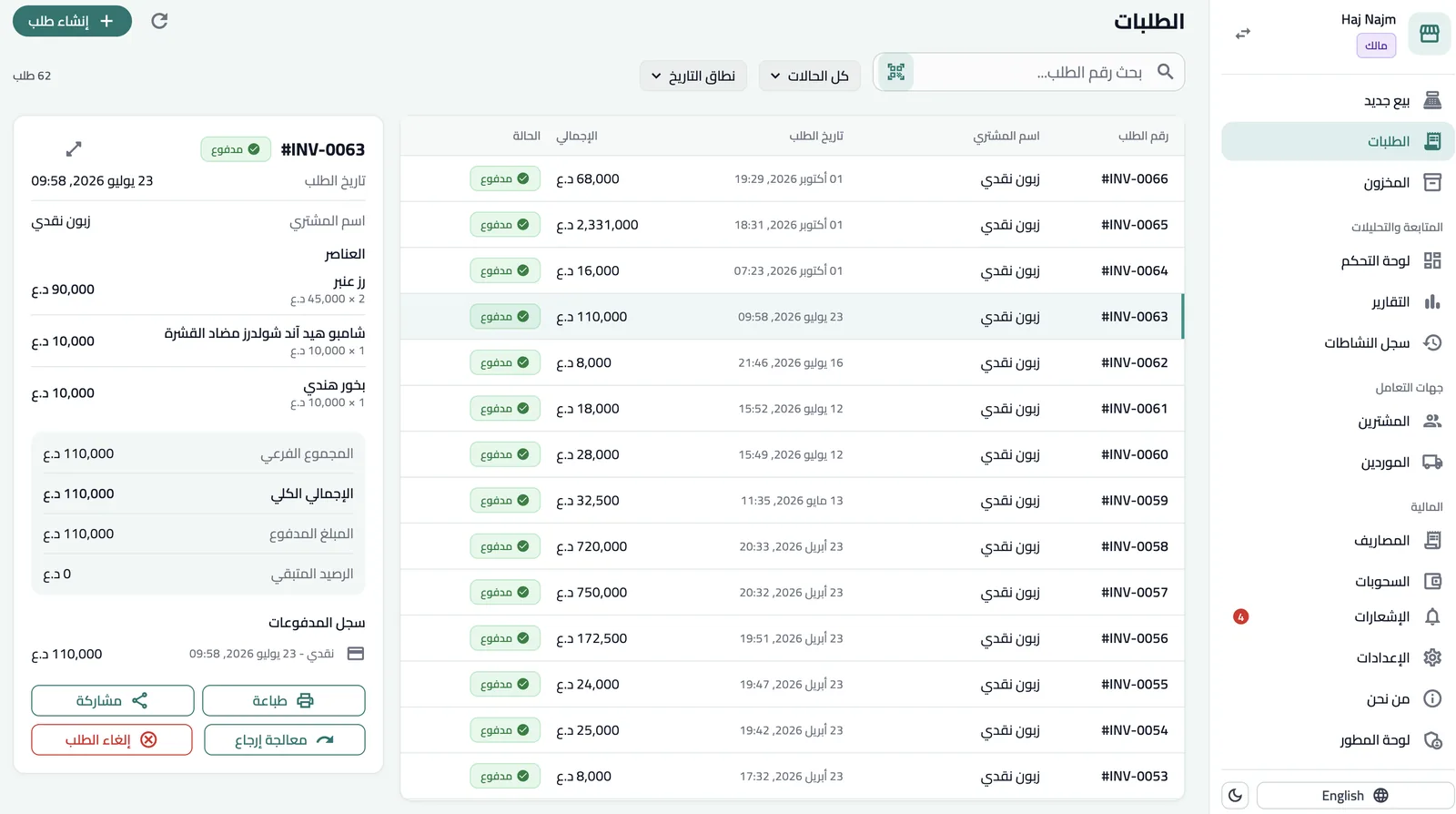
الطلبات
قائمة جانبية للتنقل، وجدول الطلبات مع لوحة تفاصيل الطلب المختار.
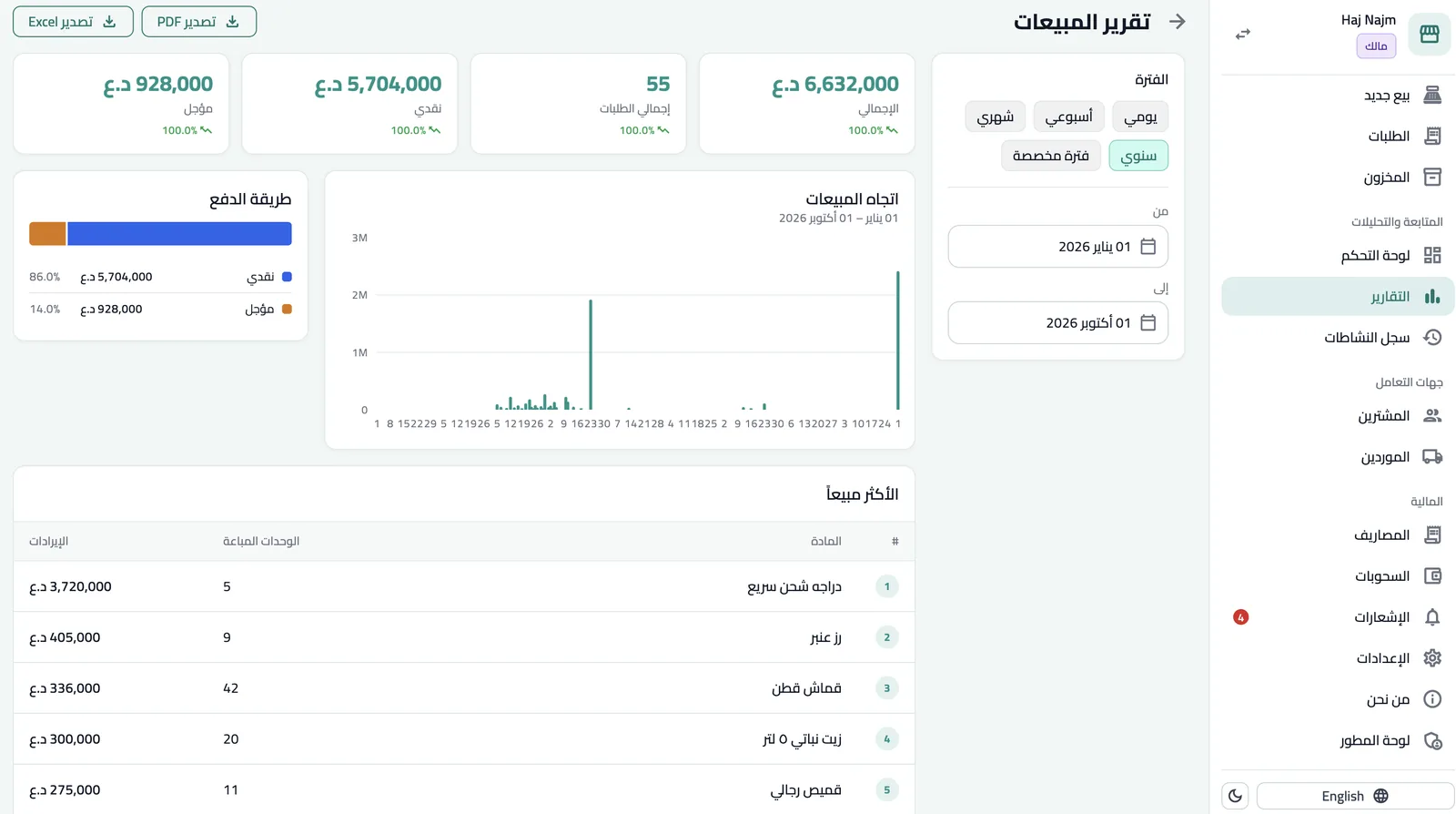
التقارير
الفلاتر في عمود، والأرقام والرسوم والجداول بجانبها، مع تصدير PDF و Excel.
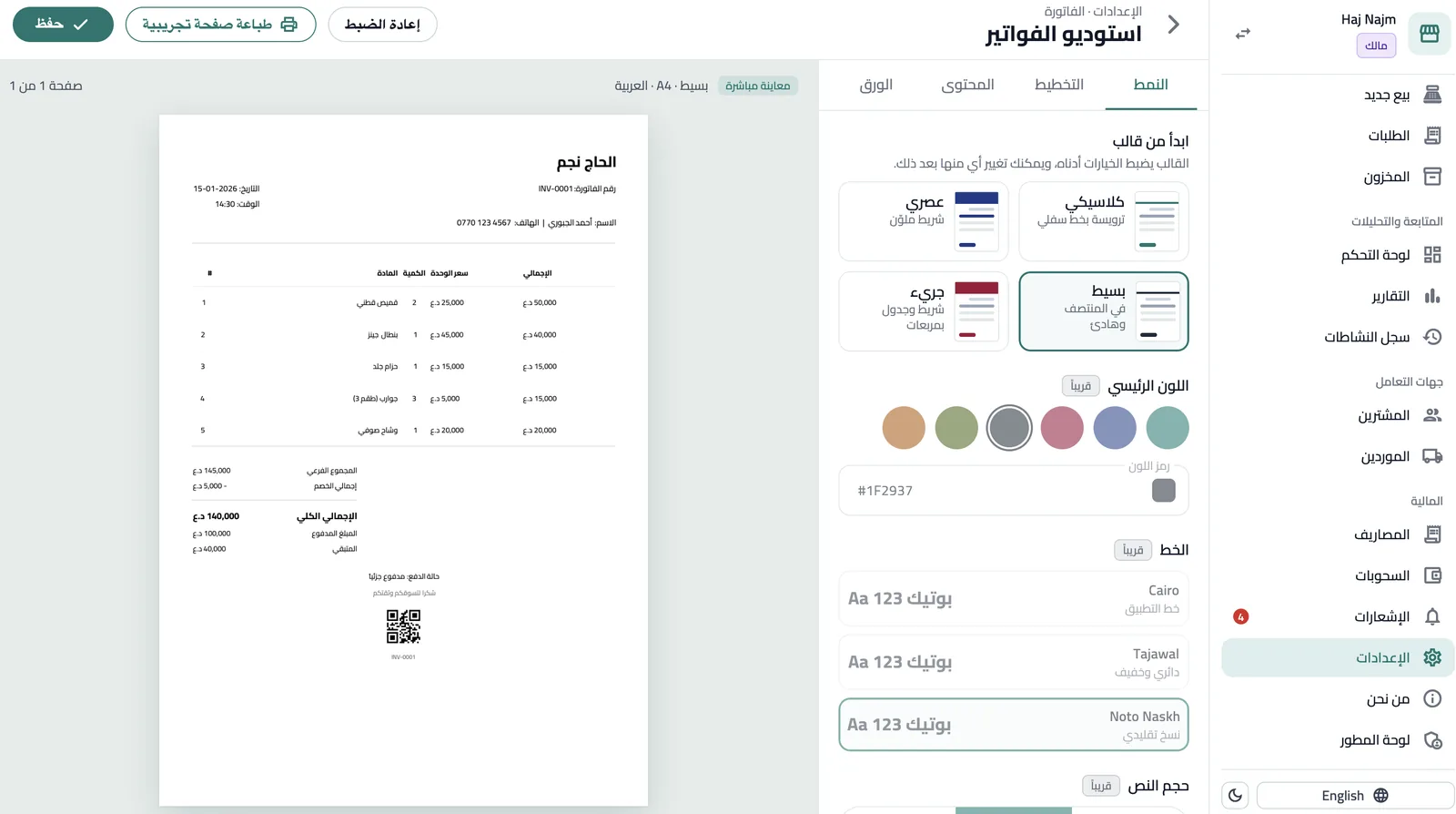
إعدادات الفاتورة
غيّر القالب والبيانات، وشاهد الفاتورة تتحدّث بجانب النموذج.
Real screens from the app
Captured from the app itself with guest-mode data, on phone, tablet and computer. The app is Arabic-first, so the captures show its Arabic interface.
Phone
Quick Sale
Search, pick from favourites, and the cart adds it up.
Camera scanning
Every scan adds the material, with a list of what you scanned.
Create order
Buyer, materials, and cash, deferred or part-paid.
Orders
Every order with its status: paid, confirmed, returned or cancelled.
Buyer debts
Balance owed and payment history for each buyer.
Material details
Buying and selling price, margin, and stock on hand.
Material label
QR, barcode or both, ready to print.
Supplier and shipments
Total purchases, amount paid and balance due.
Invoice
In your shop's name and logo, ready to print or share.
Reports
Sales, profit, stock and debts for any period.
More
Buyers, suppliers, expenses and the log in one place.
Tablet
Quick Sale
The product grid on one side, the cart and checkout fixed on the other.
Orders
The list on one side, the selected order's details beside it.
Inventory
Pick a material to see its stock, prices and code without leaving the list.
Create order
Materials with a scan button, and the payment panel beside them.
Computer
Orders
A sidebar for navigation, and the orders table with the selected order's detail panel.
Reports
Filters in a column with figures, charts and tables beside them, and PDF or Excel export.
Invoice settings
Change the template and details, and watch the invoice update beside the form.